
How to Use Google Search Console for SEO
Most business owners hear about Search Console from a developer or an agency, sign in once, see a wall of charts and never go back. That is a shame, because it is the only tool that shows how Google itself sees your website, and it is free. Used well, Google Search Console for SEO tells you which searches already find you, which pages Google has left out, and what to fix first.

To use Google Search Console for SEO, verify your website, submit a sitemap, then read the Performance report for the searches and pages where Google already shows you. Fix the pages Google has not indexed, check single pages with URL Inspection, and work first on queries where you sit just below page one. Check it about once a month and after every major change.
Set Up Google Search Console for SEO the Right Way
Sign in to Search Console with a Google account and add your site as a Domain property rather than a URL-prefix one. Google’s help page on property types explains that a Domain property includes every subdomain and both the secure (https) and older (http) versions of your address, so the data is not split four ways. It is verified with a DNS record, a line of text added to your domain settings, which your domain registrar or web developer can add for you.
If editing your domain settings is not possible, a URL-prefix property can be verified with a short HTML tag instead, which SEO plugins let you paste in.
Once you are verified, submit your XML sitemap in the Sitemaps report. Google can find pages without one, but its getting started guide notes that a sitemap can speed up discovery and gives you a report to watch. On WordPress, an SEO plugin such as Rank Math or Yoast creates the sitemap for you.
Then add the people who need access as users, and keep ownership under a company email. If an agency set the property up under its own account, ask to be made an owner today.
Read the Performance Report Before You Change Anything
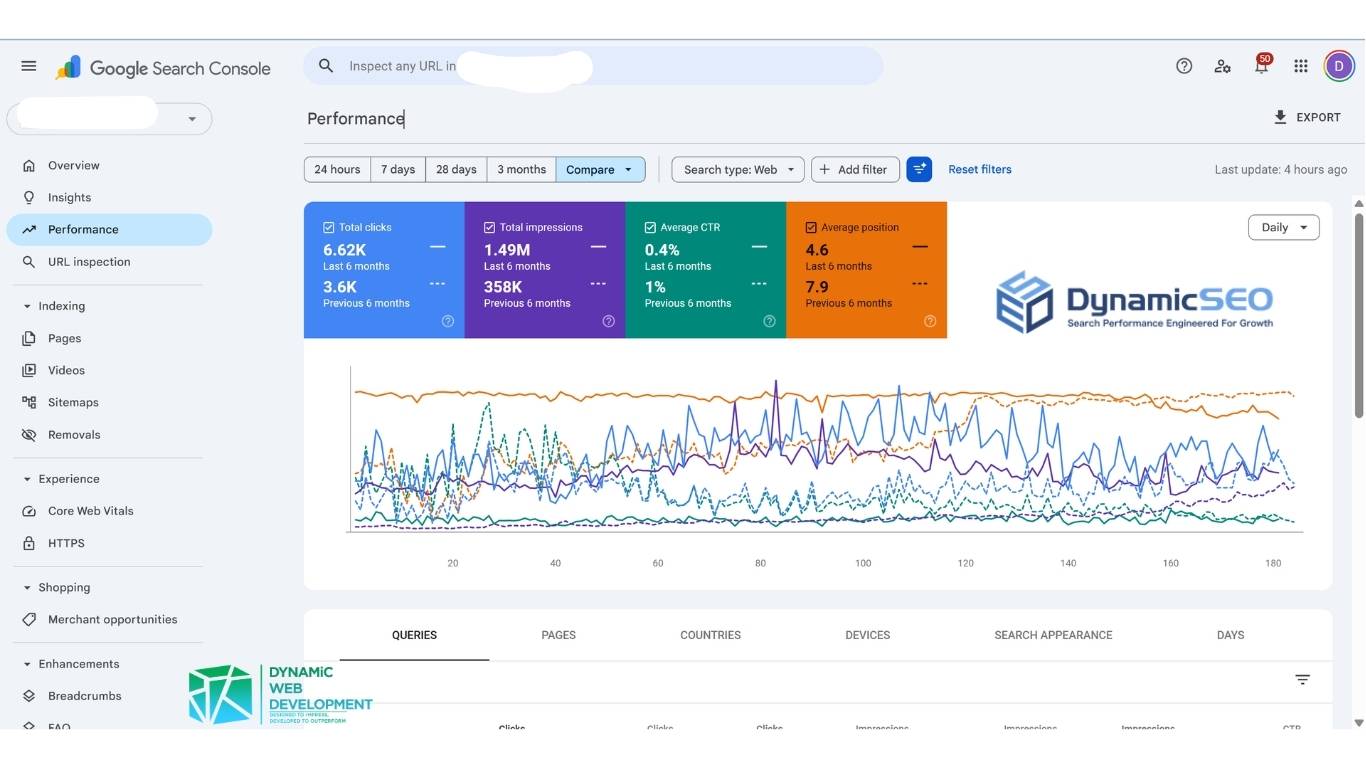
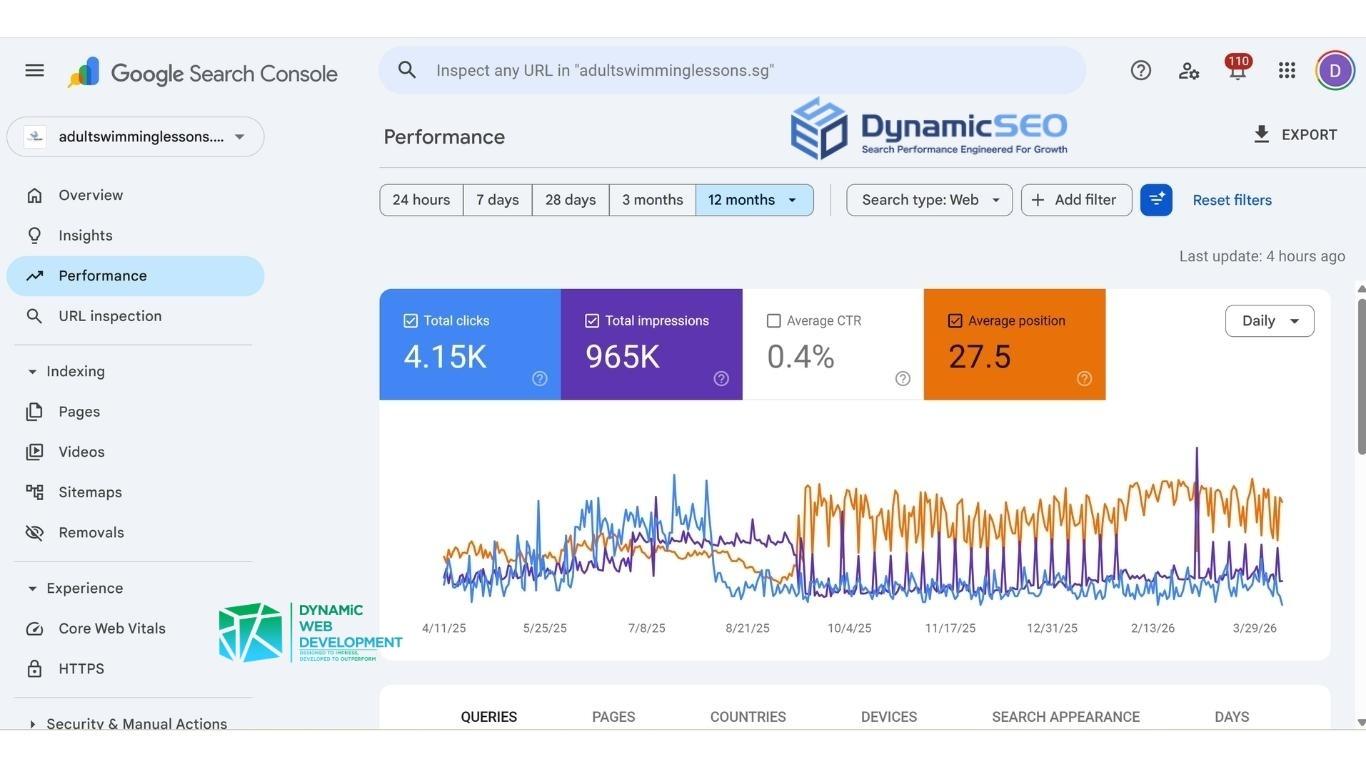
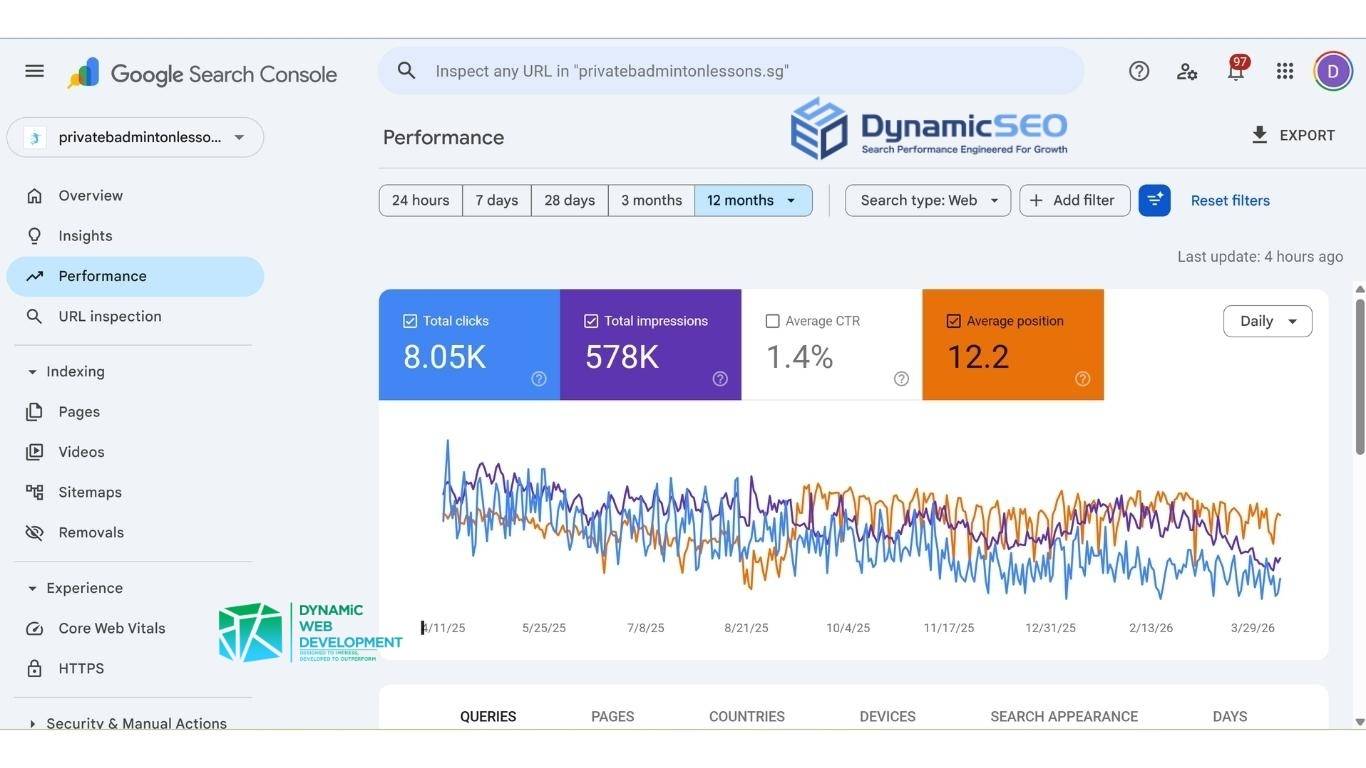
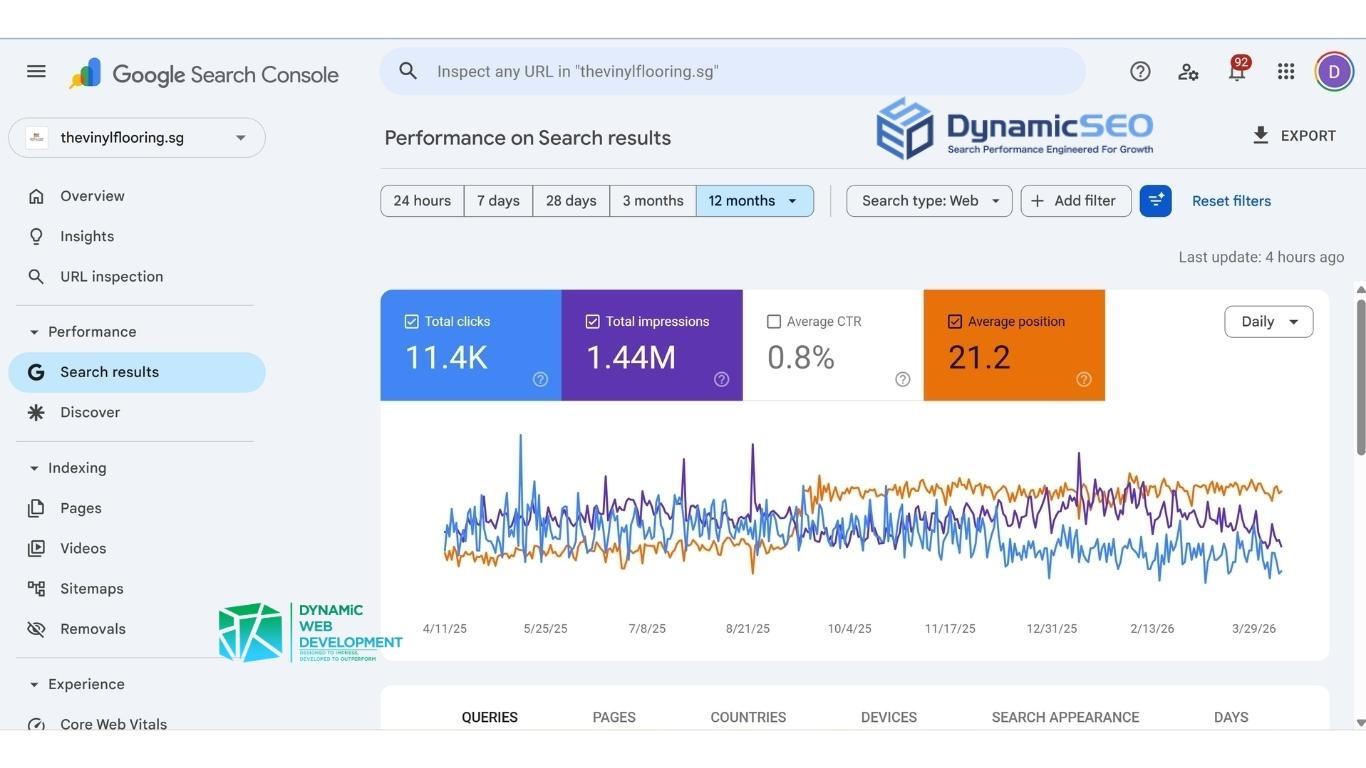
The Performance report shows four numbers. Clicks are visits from Google Search, Impressions count every time your site was shown in a result, click-through rate (CTR) is clicks as a share of impressions, and average position is the average rank of your highest result. It opens on the last three months, and Google’s guide to traffic drops shows the date filter reaching back 16 months, which is long enough to see a seasonal pattern.
Switch between the Queries and Pages tabs before drawing any conclusion. A page can look weak overall while one query on it is doing well, and a query can look strong while it sends visitors somewhere less useful. A tuition centre in Bukit Timah, for example, may find its fees page winning the searches meant for its main course page. When those two views disagree, that disagreement is usually your first job.
Find the Pages That Are Close to Page One
Most of the value of Google Search Console for SEO sits in this one view. Turn on average position in the Queries tab, sort by Impressions, and use our rule of thumb: look for searches sitting in positions 8 to 20. Those pages are already relevant to Google. They usually need a clearer answer near the top, a better title, or a few links from your other pages, rather than a rewrite from scratch.
Next, look for pages that are shown often but have a low click-through rate. People see them and choose another result, which often means the title and description do not match what they searched for. We rewrite those two lines first, because it is the smallest change that can move clicks, and it is the first step in our on-page SEO work. If you have not yet mapped which searches each page should win, our keyword research service starts from exactly this data.
Turn Google Search Console for SEO Data Into Fixes
The Page indexing report lists the URLs Google has indexed and the reasons it left others out, such as a tag telling Google to skip the page, a page that forwards to another address, a missing page or a duplicate. Google is clear that not every URL needs to be indexed. What matters is that your service pages, your main articles and your homepage are.
Fix the cause on the site first, then press Validate fix so Google rechecks the affected URLs. Google says validation usually takes up to about two weeks and sometimes longer, so check back rather than pressing it again. If the same problem keeps returning across many pages, it is usually a template or plugin setting, and our technical SEO guide covers the common causes.
Check a Single Page With URL Inspection
Paste any address from your site into the bar at the top to use URL Inspection. It tells you whether that page is on Google, which version Google treats as the main one (the canonical), and when it was last crawled. The live test fetches the page as it is right now, which is the quickest way to confirm a fix worked.
After you publish or update an important page, this is the part of Google Search Console for SEO you will use most: press Request indexing. Google states that a request does not guarantee the page will be indexed, and there is a daily limit, so keep it for pages that matter and let the sitemap handle the rest.

Watch the Experience, Manual Actions and Security Reports
Three more reports deserve a monthly glance. The Experience section, which holds the Core Web Vitals report, groups your pages by how fast and stable they feel on real phones and computers. Manual Actions tells you if a person at Google has found a breach of the spam policies. Security Issues flags hacking or malware. The last two should stay empty, and Search Console emails you if either changes.
What Search Console Now Shows About AI Search
Search Console now reports how often your pages appear in Google’s generative AI features, such as AI Overviews and AI Mode. Google’s announcement says the report counts how often each page was shown, by page and country, without clicks or queries, and that it reached all websites worldwide on 31 August 2026.
The same update added a setting that removes a site from those features. Leave it alone unless you have a strong reason, because Google says sites that opt out are not shown in them at all. We cover how pages earn a place in AI answers on our AI search optimisation page.
How Often to Check, and When to Ask for Help
The last step in using Google Search Console for SEO is making it routine. Google’s own advice is to check it about once a month, and again after you change your site. Our own monthly check follows the order of this guide: Performance, Page indexing, then the three warning reports. For turning those numbers into a monthly picture of progress, our guide on how to track SEO progress shows the reports we use.
If you would rather hand the work over, make sure whoever you hire works from your own Search Console and shares it with you. That is one of the first things to ask when you choose the best SEO company in Singapore for your business, and our SEO services start from the same data.
Frequently Asked Questions

Is Google Search Console the same as Google Analytics?
Why does Search Console show fewer clicks than Analytics?
Can I see my competitors’ data in Search Console?
Why are there queries that seem unrelated to my business?
Grow Your Online Presence With SEO Built for Long-Term Results

Partners in Success, Stronger Together